
Step-by-step tutorials

Learn Elixis from setup to daily operations.

Based on the included Elixis user manual, these tutorials cover the core workflows your team will use most. YouTube embeds are placeholders for now.

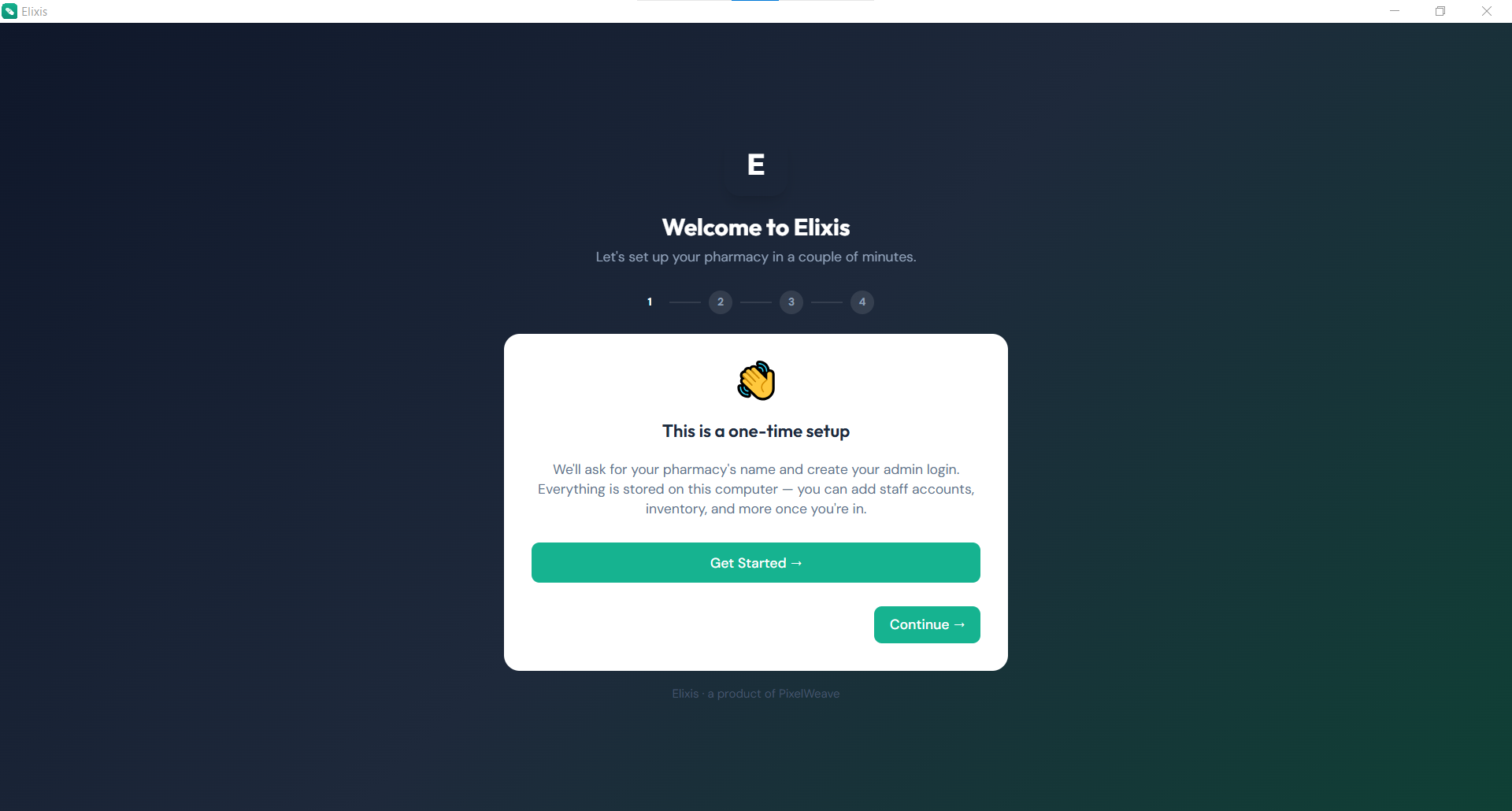
First setup screenshot

Tutorial 1

First setup

Set up a new pharmacy, enter store details, create the admin account, optionally load sample medicines, and accept the policies.

  1. Open the related screen from the sidebar.
  2. Review required fields and enter accurate store data.
  3. Save the record, then verify it appears in the relevant list or report.
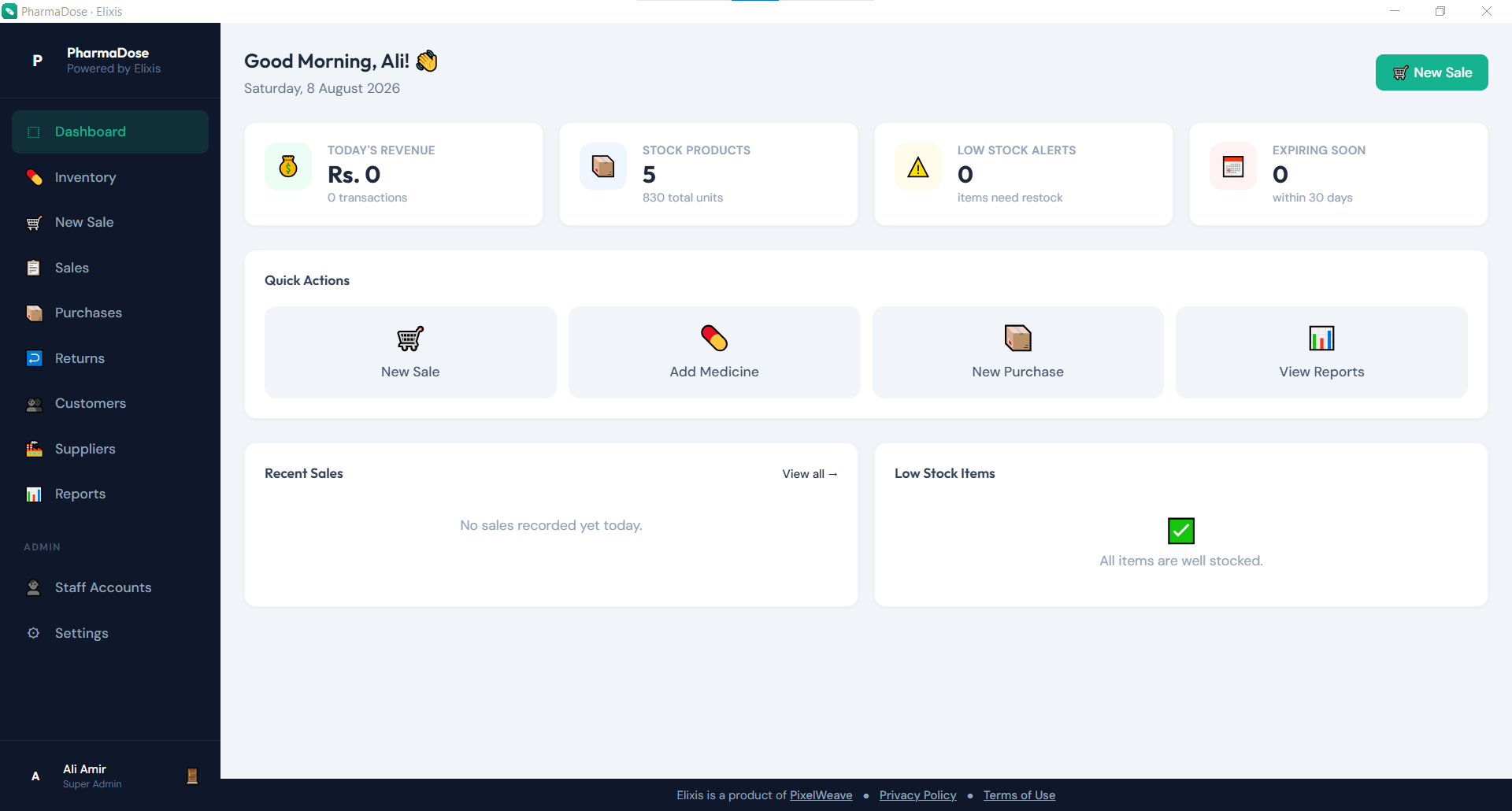
Sign in and dashboard screenshot

Tutorial 2

Sign in and dashboard

Use staff credentials to reach the dashboard, then review revenue, stock alerts, activity, and shortcuts.

  1. Open the related screen from the sidebar.
  2. Review required fields and enter accurate store data.
  3. Save the record, then verify it appears in the relevant list or report.
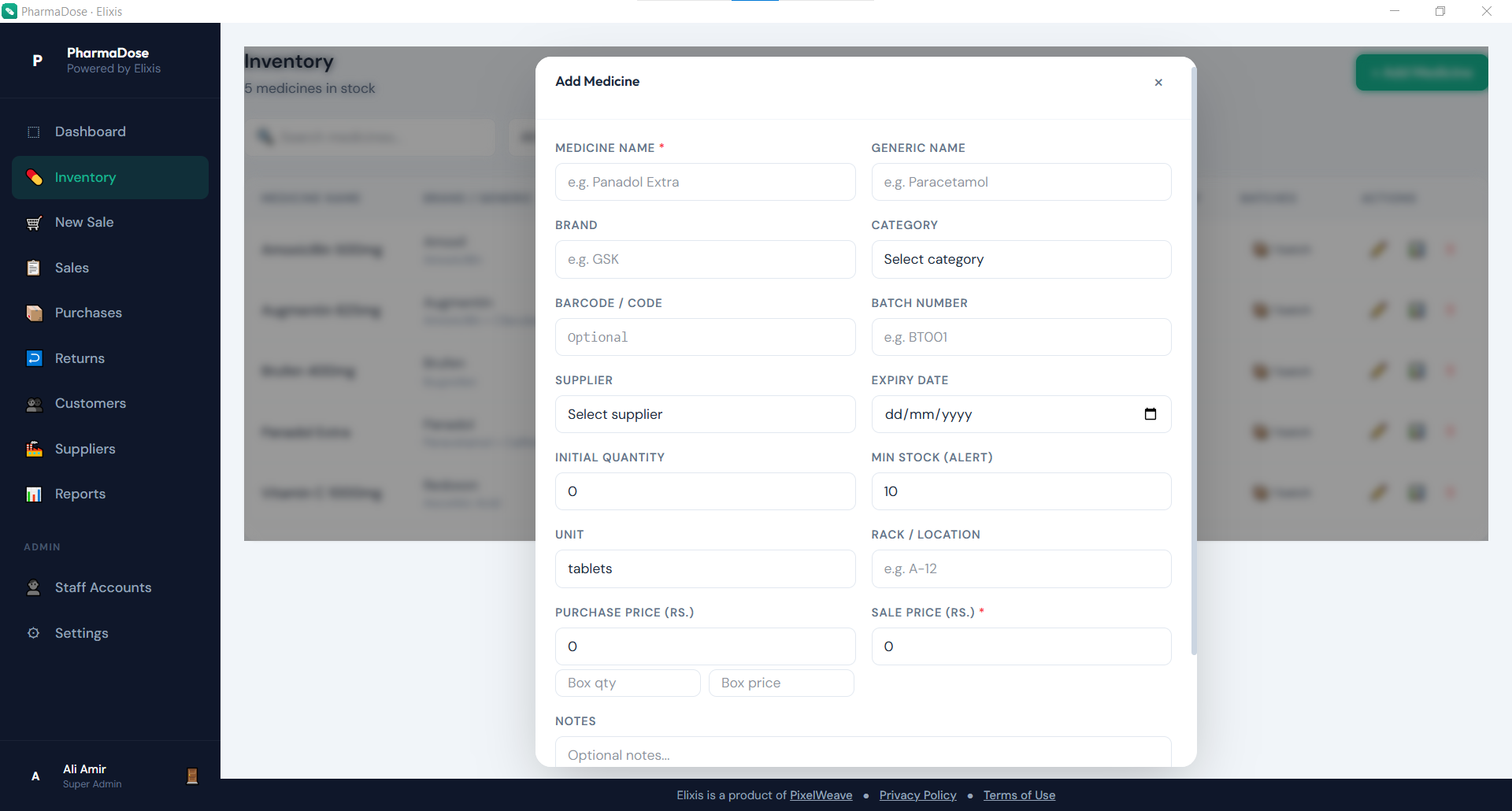
Add medicines screenshot

Tutorial 3

Add medicines

Create medicines, batches, prices, expiry dates, reorder levels, and supplier links before selling.

  1. Open the related screen from the sidebar.
  2. Review required fields and enter accurate store data.
  3. Save the record, then verify it appears in the relevant list or report.
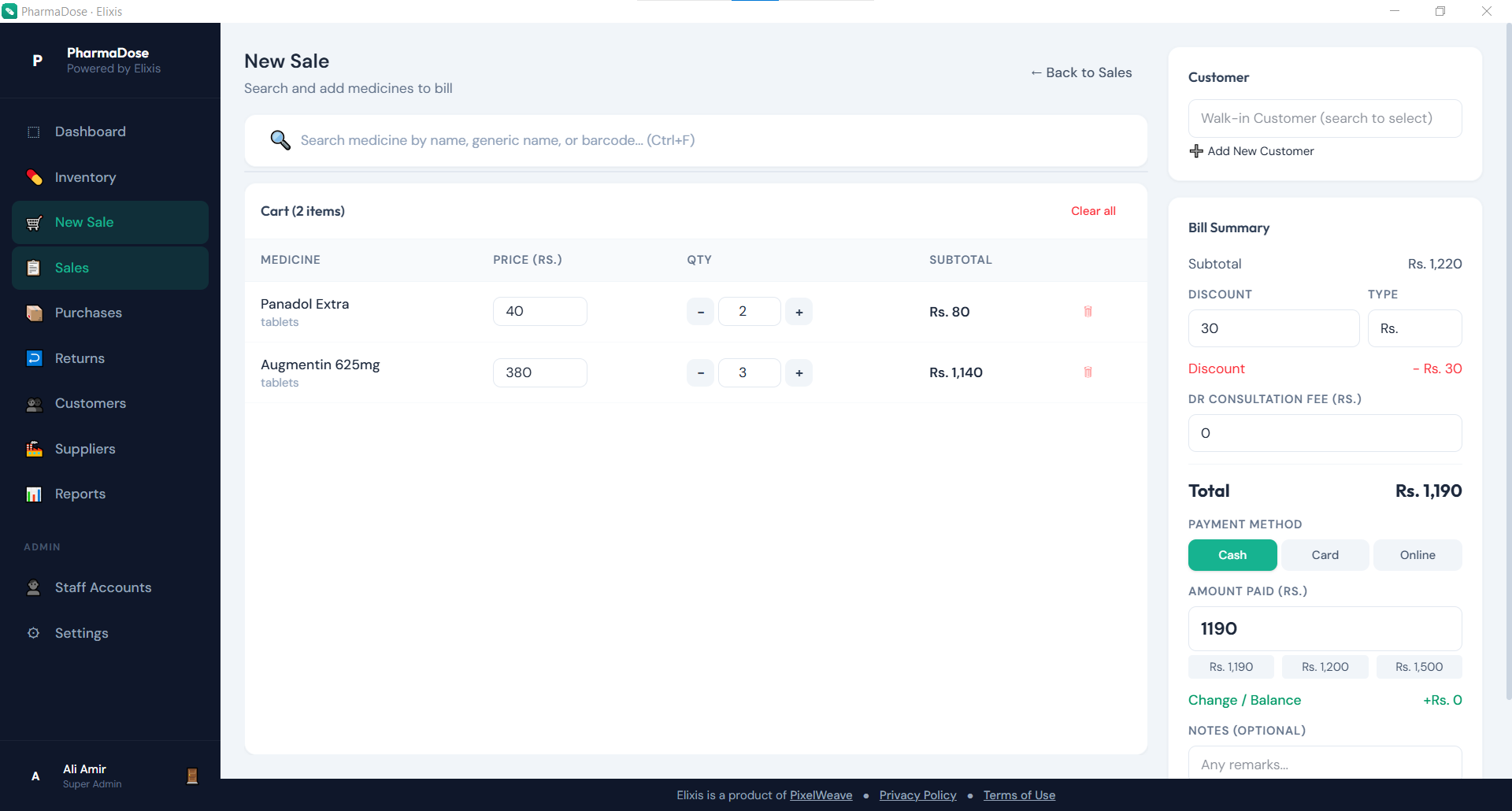
Complete a sale screenshot

Tutorial 4

Complete a sale

Search inventory, add items to cart, attach a customer if needed, apply payment details, and complete the invoice.

  1. Open the related screen from the sidebar.
  2. Review required fields and enter accurate store data.
  3. Save the record, then verify it appears in the relevant list or report.
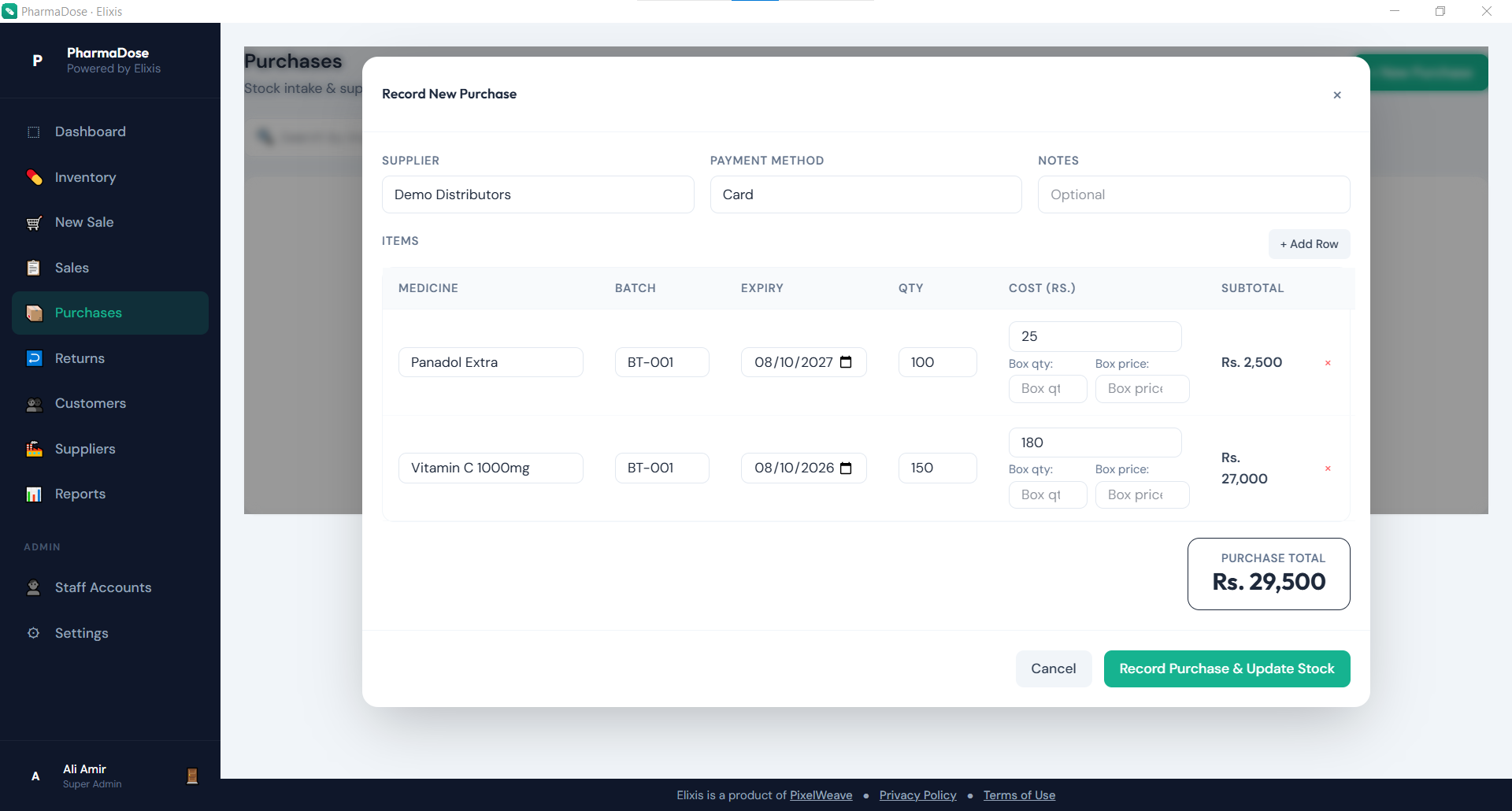
Record purchases screenshot

Tutorial 5

Record purchases

Add incoming stock from suppliers so inventory quantities and cost history stay accurate.

  1. Open the related screen from the sidebar.
  2. Review required fields and enter accurate store data.
  3. Save the record, then verify it appears in the relevant list or report.
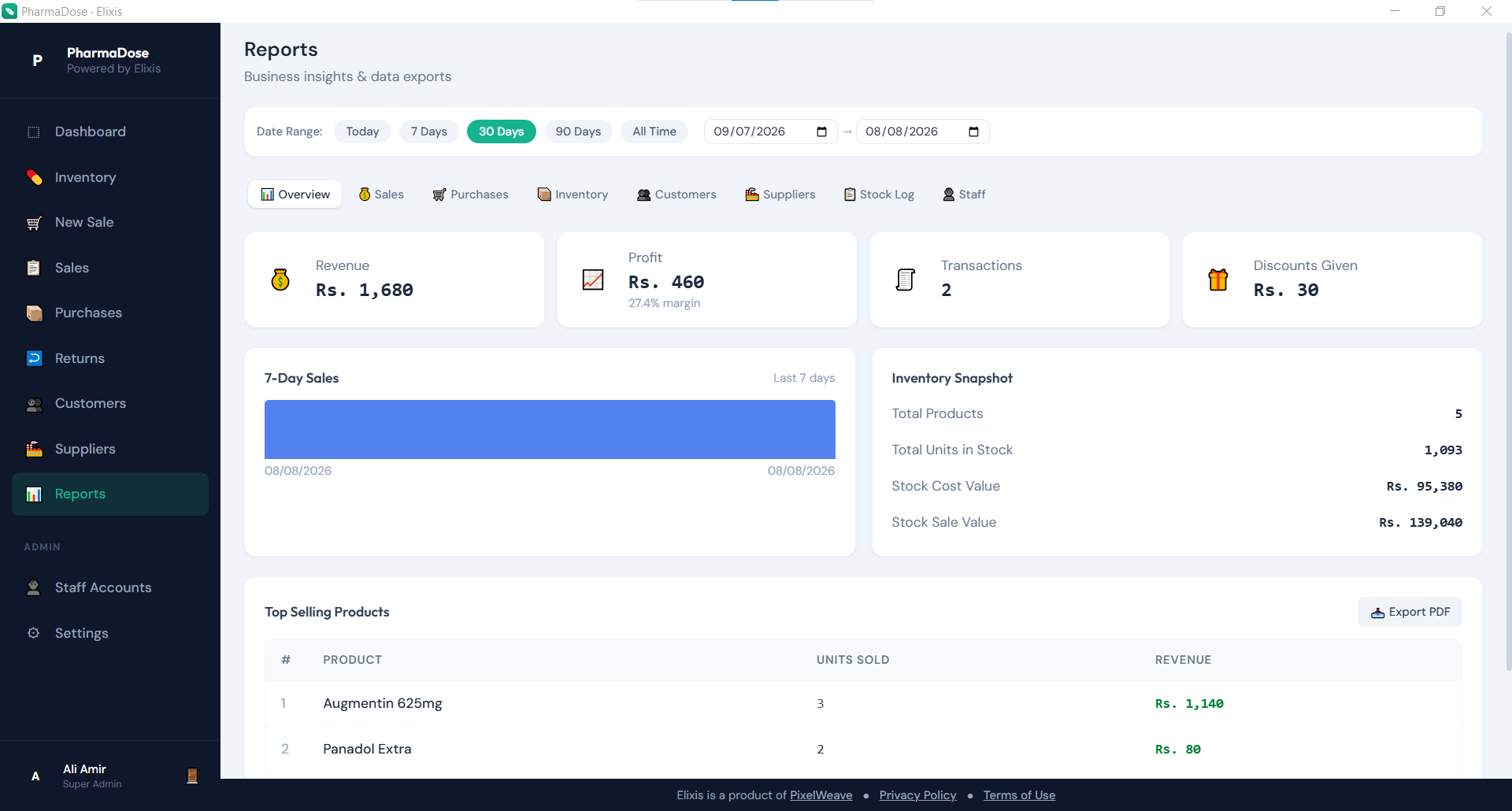
Review reports screenshot

Tutorial 6

Review reports

Use sales, purchase, inventory, and overview reports to understand store performance and export records.

  1. Open the related screen from the sidebar.
  2. Review required fields and enter accurate store data.
  3. Save the record, then verify it appears in the relevant list or report.
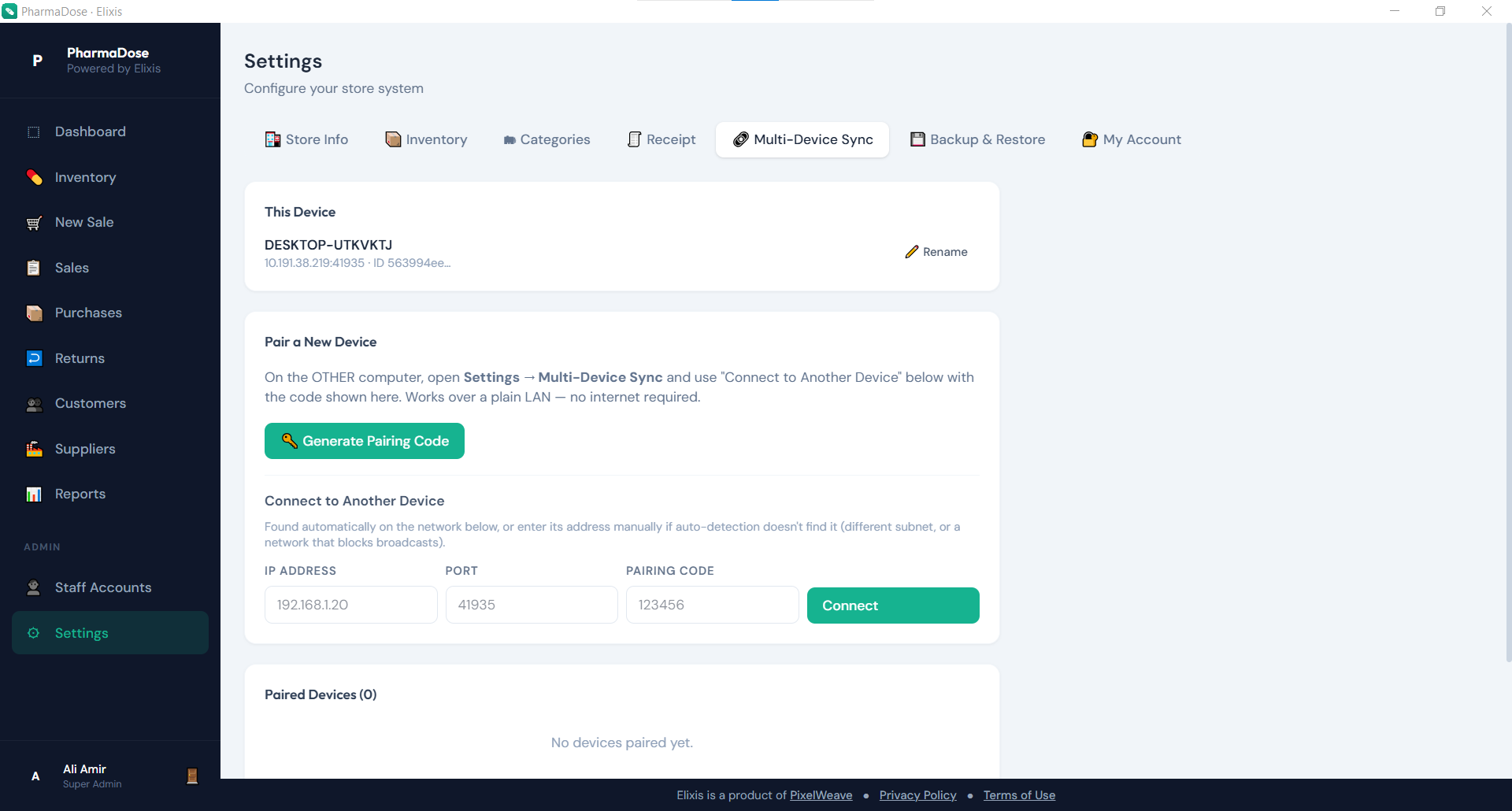
Enable backup and sync screenshot

Tutorial 7

Enable backup and sync

Configure local backup, optional Google Drive backup, and same-network multi-device sync from Settings.

  1. Open the related screen from the sidebar.
  2. Review required fields and enter accurate store data.
  3. Save the record, then verify it appears in the relevant list or report.